Gamifying a quiz on Microsoft 365
October 1, 2026
How I turned a quiz into a game with a live leaderboard, using Microsoft Forms, Power Automate, SharePoint, and Teams. I built it for Cybersecurity Awareness Month, but the same setup can work anywhere.
October is recognised around the world as Cybersecurity Awareness Month. We mark it every year, and quizzes have always been part of how we do that. This year, I contributed in my own way by making the quiz feel more like a game, where people could see how they were doing on a leaderboard in real time.
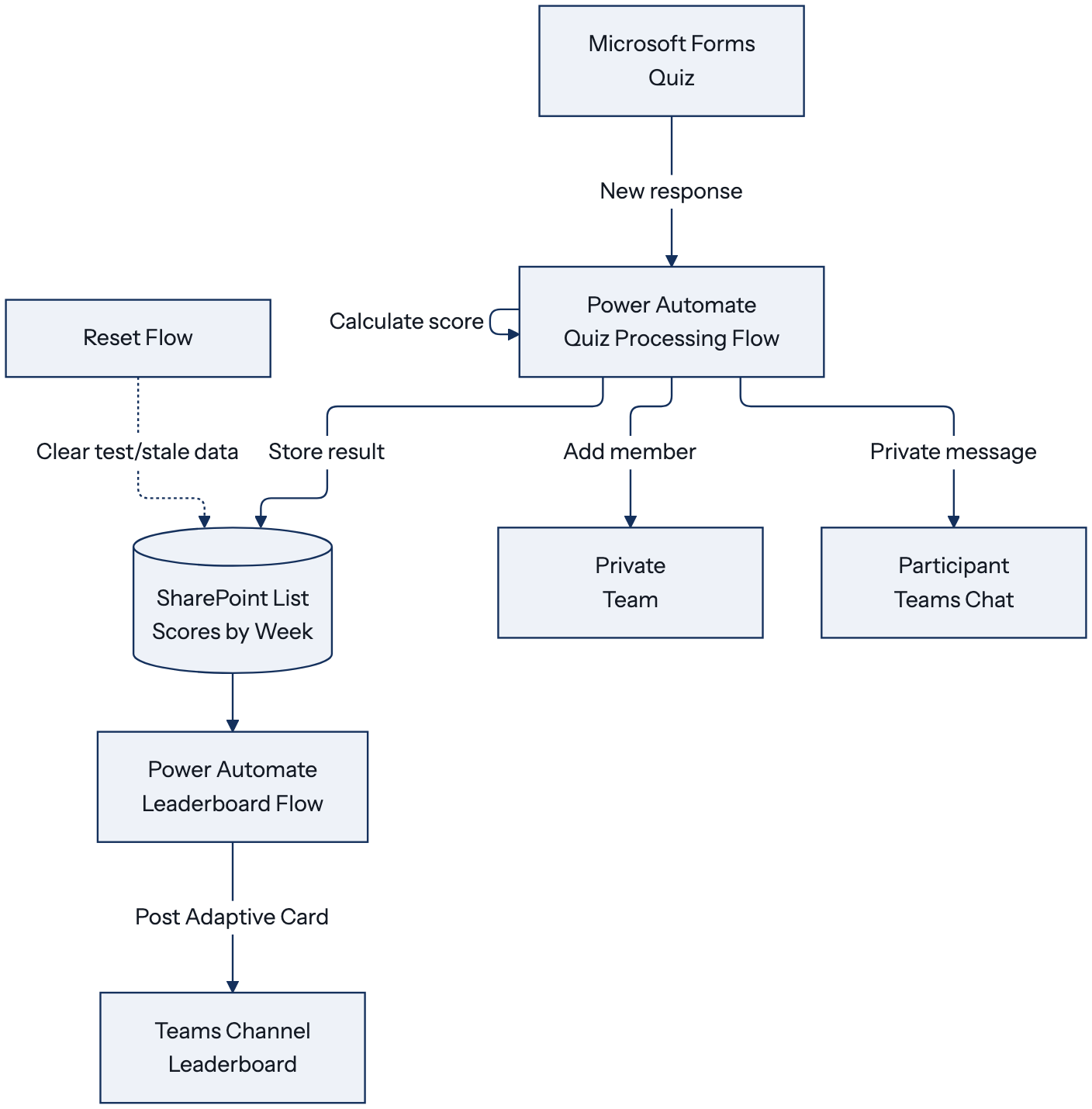
For the person taking part, it works like this. You take the quiz in Forms as usual, and shortly after you submit, your score arrives in a private Teams message. You're also added to a private team, where a channel shows the leaderboard as people submit their answers. All of it runs on Microsoft Forms, Power Automate, SharePoint, and Teams, so if your organisation already has Microsoft 365, there is nothing new to buy. I built it for Awareness Month, but nothing about it is tied to security, so the same setup could work for onboarding, product knowledge, compliance training etc. I've written out how I set it up, in enough detail for you to build your own.
The team and the account
I started with a dedicated account for sending everything, so that the messages look consistent and the flows don't depend on anyone's personal session. Every Teams and SharePoint connection in the flows below is signed in with this account.
I then created a private team, made the account an owner, and added a standard channel for the leaderboard. It has to be a standard channel, because the Teams connector can't post to private channels.
The SharePoint lists
Everything is stored in two lists on the team's SharePoint site. The first holds the scores. Create the columns without spaces in their names, because the flows refer to them by name.
| Column | Type | Used for |
|---|---|---|
Title | Single line of text | The participant's email |
Participant | Person | Their name on the leaderboard |
Score | Number | Their score |
Week | Number | Which quiz the score belongs to |
Winner | Yes/No, default No | Whether they have already won |
The second list holds the settings, in a single row that the flows read each time they run. Changing the week or pausing everything then only means editing this row.
| Column | Type | Used for |
|---|---|---|
Week | Number | The current quiz, starting at 1 |
Active | Yes/No | Whether submissions should be processed |
CardMessageId | Single line of text | The leaderboard card to update, blank for now |
I added two views to the scores list, which made things easy to check. One filters on the current week and sorts by score, and the other shows only people with Winner set to No, for picking winners who haven't won before.
Adding someone to a team normally gives them access to the team's SharePoint site, and that would include the raw scores. So on both lists, I went to the list settings, opened the permissions, chose Stop Inheriting Permissions, and removed the site's Members group. People can still see the leaderboard in Teams, but they can't open or change the lists. The flows keep working because Power Automate uses the credentials of its connection, not those of the person who submitted the quiz.
The quiz
In Forms, I created a New Quiz in my own account, using Choice questions with one correct answer each. These are the settings I used:
- Only people in my organization can respond
- Record name: on
- One response per person: on
- Show results automatically: off
Turning off automatic results means the score comes through Teams. I also changed the confirmation message to tell people to watch Teams for a private message, and I previewed the quiz without submitting it, because with one response per person, a test response blocks your account until you delete it.
The quiz processing flow
This flow does most of the work. In Power Automate, I created an automated flow and added these steps in order:
- Trigger: "When a new response is submitted" (Forms), with the quiz as the Form Id.
- "Initialize variable": an Integer named
Score, starting at 0. - "Get response details" (Forms): the same Form Id, with the Response Id from the trigger.
- "Get item" (SharePoint): the row in the settings list. Add a Condition here with a Terminate action if
Activeis No. - A Condition for each question: if the answer is equal to the correct option's text, use "Increment variable" to add 1 to
Score. - "Create item" (SharePoint): in the scores list, with
TitleandParticipantset to Responders' Email,Scoreset to the variable, andWeektaken from the settings row. - "Add a member to a team" (Teams): the private team, with User set to Responders' Email. This field expects a user principal name, so if your users' email addresses and sign-in names differ, you'll need to look up the right value first.
- "Create a chat" (Teams): Members to add set to Responders' Email.
- "Post message in a chat or channel" (Teams): Post as User, Post in Group chat, with the chat from the previous step. The message shows
Scoreand a line based on it.
For that line, I used a nested if(). For a quiz of ten questions, it looks like this:
if(equals(variables('Score'),10),
  'Flawless. The hackers just filed a complaint, they''re worried!',
  if(greaterOrEquals(variables('Score'),8),
    'Sharp instincts.',
    'Good effort. Stay cyber smart.'))
An apostrophe inside a string has to be doubled, which is why it says they''re, and every if( needs its closing bracket. Both of those cost me some time.
The leaderboard
Posting a new card after every submission would fill the channel with nearly identical posts, so there is one Adaptive Card, and it gets updated each time. To create it, I made a small flow with a manual trigger and one action, "Post card in a chat or channel". It posts as User, in Channel, to the leaderboard channel, using this card:
{
  "type": "AdaptiveCard",
  "$schema": "http://adaptivecards.io/schemas/adaptive-card.json",
  "version": "1.4",
  "body": [
    {"type": "TextBlock", "text": "Leaderboard", "weight": "Bolder", "size": "Medium"},
    {"type": "TextBlock", "text": "No scores yet."}
  ]
}
I ran it once, copied the Message ID from the run history into CardMessageId in the settings row, and pinned the card in the channel.
The leaderboard flow then keeps that card up to date:
- Trigger: "When an item is created" (SharePoint), on the scores list.
- "Get item" (SharePoint): the row in the settings list.
- "Get items" (SharePoint): the scores list, with Filter Query set to the week below, Order By set to
Score desc, and Top Count set to the number of places you want to show. - "Select" (Data Operation): From set to the value of "Get items", with Map switched to text mode, using the mapping below.
- "Update an adaptive card in a chat or channel" (Teams): Post as User, Post in Channel, the same team and channel, with the Message ID set to
CardMessageIdand the card below.
The filter query:
Week eq @{outputs('Get_item')?['body/Week']}The mapping for "Select":
{
  "type": "TextBlock",
  "text": "@{item()?['Participant']?['DisplayName']}: @{item()?['Score']}"
}
The card for the update:
{
  "type": "AdaptiveCard",
  "$schema": "http://adaptivecards.io/schemas/adaptive-card.json",
  "version": "1.4",
  "body": [
    {"type": "TextBlock", "text": "Leaderboard", "weight": "Bolder", "size": "Medium"},
    {"type": "Container", "items": @{body('Select')}}
  ]
}
Because this flow runs separately, a problem with the leaderboard doesn't affect anyone's result; by then, the score is saved and the private message has gone out.
Testing and starting a new quiz
For testing, I built a third flow with a manual trigger. It uses "Get items" with the same week filter, an "Apply to each" with "Delete item" to clear those rows, and the update action from above to put the card back to "No scores yet."
To test everything, I submitted one response and checked that the score matched in Forms, the flow's run history, and the list, then checked the private message, my team membership, and the card. After that, I ran the reset flow and deleted my response in Forms so that the one-response rule wouldn't block me later. It's best to do this before you announce the quiz, because anyone in the channel can see the card and anyone with the link can submit while you're testing.
For a new quiz, close the previous form by turning off Accept responses, and set Winner to Yes for anyone who won. Then point the trigger and "Get response details" at the new form. A new form has new question IDs, so every Condition has to be mapped again, and it's worth rechecking Responders' Email in the steps that use it. Finally, post a new card, leave the old one in the channel as a record, and update Week and CardMessageId in the settings row.
What I would do differently
If I were to do this again, I would keep the answers in a list and mark them in a loop, so that a new quiz would only mean editing data. I would also let the flow work out the week from the form that triggered it, so there would be one less thing to remember. And if the quiz were going to run for much longer, I would move it out of my own account; for a campaign of this length, that was fine.